

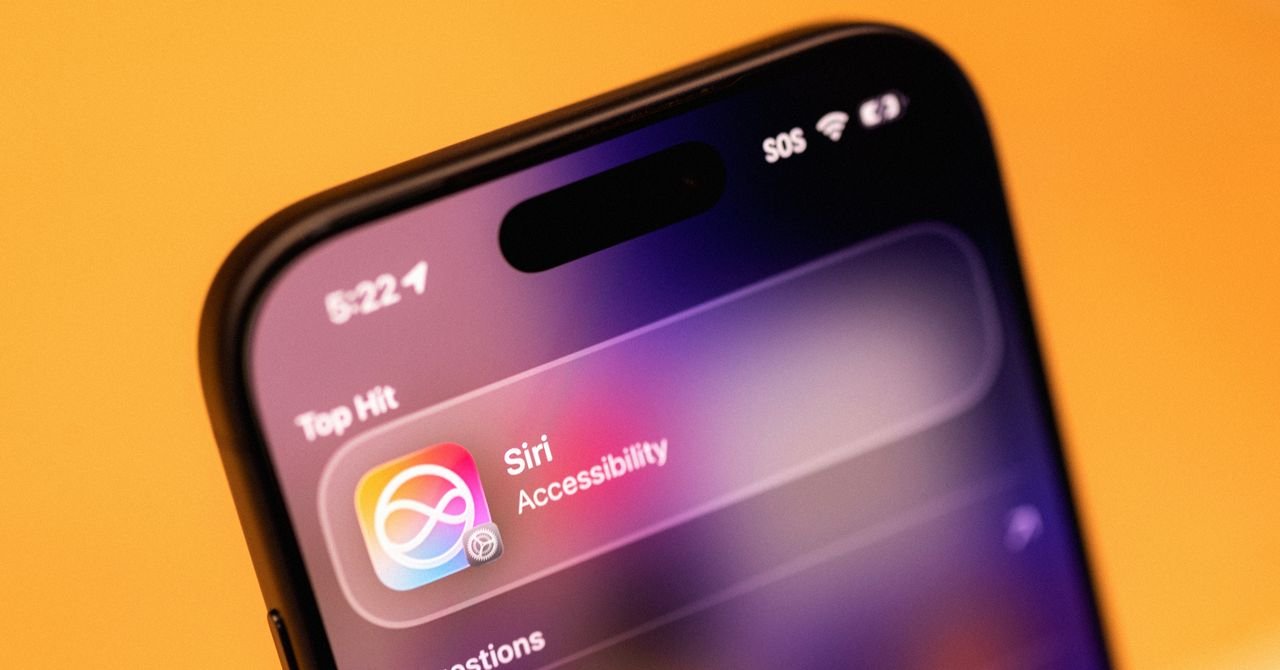
Don’t want Siri to use your interactions with a specific app? In your phone Settingsgo to the “Siri AI” section and scroll down to App access. Then select the app you want to change and toggle Learn from this app To the left. “Allow Siri to learn how to use this app to make suggestions across apps,” reads a beta version of the description under that toggle. These are enabled by default when Siri AI is enabled.
This revamped Siri is integrated into the phone’s search function. So if you swipe down in the middle of the screen, Siri will appear with a Search or ask Bar. You can type in this blank field or tap the microphone icon to ask your question. In most cases, pressing Enter will send the request to Siri for answers. For example, I wrote “What is a good route to drive to Sacramento?” entered. in Siri. It opened the maps app with a pre-selected suggested driving route. Not bad! If you want, you can still type Show results below the text bar for the more traditional web search vibe.
Table of Contents
Consciousness on the screen
In addition to the personal context from this indexing process, Siri can also pull details from what is currently visible on your screen. This type of screen awareness was previously available as Siri’s “Visual Intelligence” and helps make Siri feel like it’s actually being helpful, no matter what you’re doing.
This makes it easier to double check something I see on social media. For example, I was scrolling on Bluesky and saw several posts about singer Lorde criticizing Meta’s AI smart glasses, but I hadn’t seen a source for this message. So when one of the posts was visible on my screen, I asked Siri AI, “Where did she say that?” I didn’t have to provide details about who “she” was or what comment I was referring to; Siri retrieved this information from my screen. Then Siri confirmed that this was happening at a festival in Madrid and provided links for me to read more about.
For Siri AI, seeing is believing. Well, at least you see what’s on your screen and what’s around you. Beyond just what you see on the screen, Apple has something new Siri tab in the Camera app next to your default photo and video options. When you tap round button In the middle, Siri automatically analyzes the images and gives you a short contextual paragraph. Tap Message icon On the left, an image is uploaded to Siri with the option to add a prompt for more details. Tap Image search symbol on the right, searches the internet for relevant links.
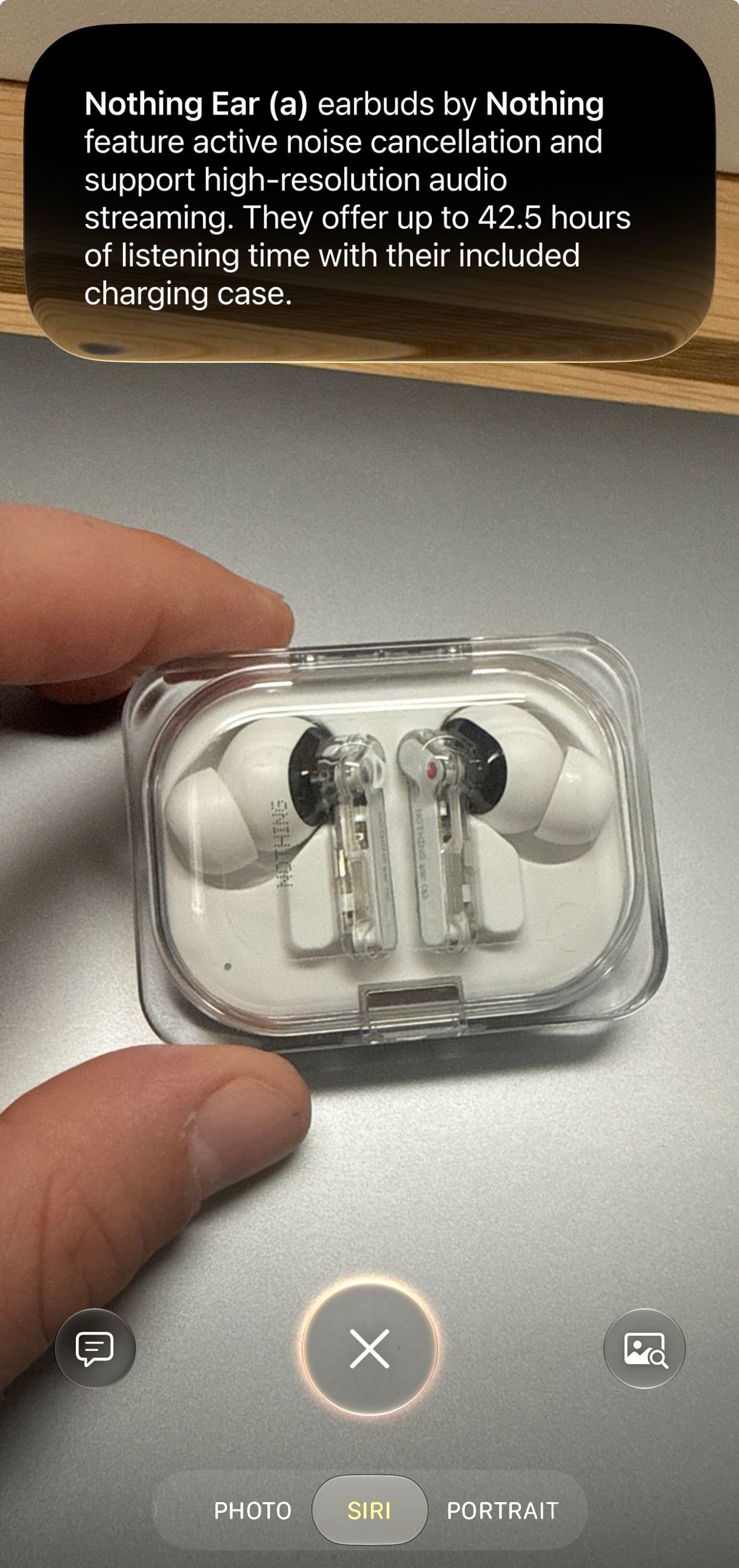
If you swipe down on this paragraph from Siri AI, it will expand into a longer answer with source links.
Photo: Reece Rogers
Everything, everywhere
Siri AI is more than just Apple’s smartphone assistant; It is also part of the user experience across the ecosystem. Siri is available on iPads and Macs, with screenshot integrations on iPads and a dedicated shortcut on Macs. Even the Vision Pro has this new Siri for the few readers who actually own this hardware. However, there are hardware requirements. For example, Siri AI is only available on iPhone 15 Pro and newer devices – even if you can download iOS 27, that doesn’t mean you’ll automatically get the new Siri.
On the iPhone, Siri AI features are even more widespread than I mentioned above. Write with Siri is another tool for taking notes or composing text messages. For example, when I was texting my partner about organizing our apartment, I tapped the Siri button and told him the main thing I wanted to say (more storage spaces). It then drafted a paragraph-long text message that sounded somewhat like what I would write and loaded it into the message box. A further development compared to the autosuggestions of the past.
https://www.wired.com/story/siri-ai-is-now-apple-everything-tool/